

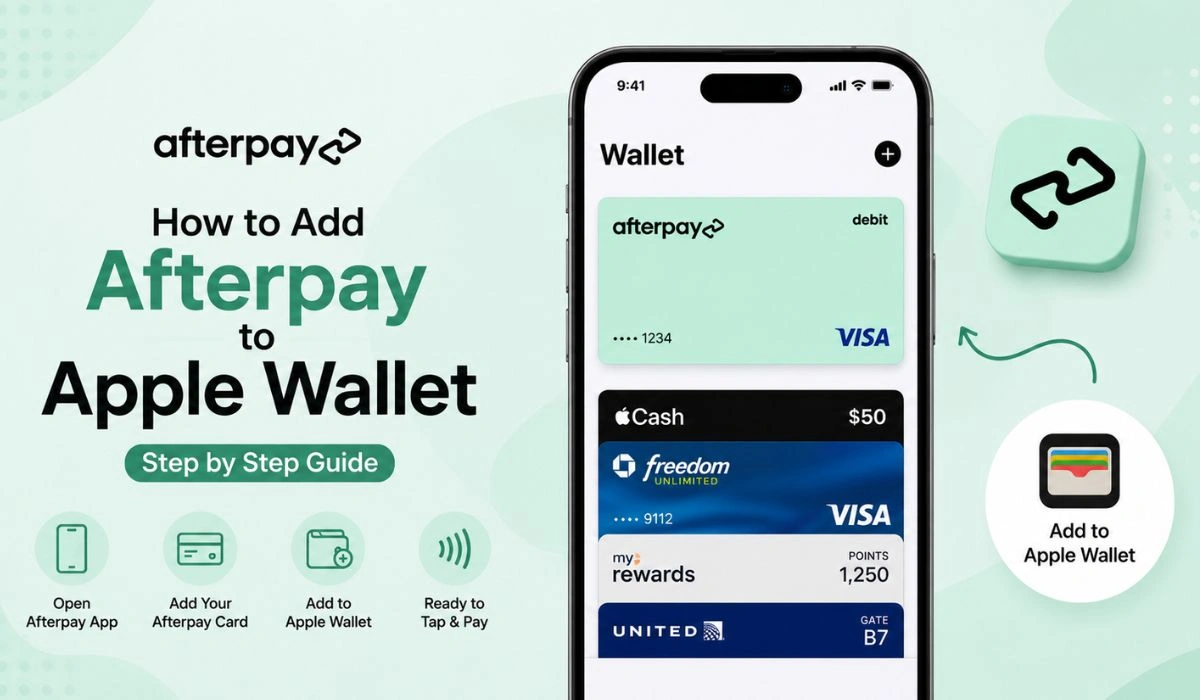
To add Afterpay to Apple Wallet, open the Afterpay app, go to the Card section, choose the Afterpay Card, and tap Add to Apple Wallet. Then follow the Apple Wallet prompts. Once it is added, you can use Afterpay with Apple Pay at supported in-store retailers.
Adding Afterpay to Apple Wallet makes in-store shopping much easier. Instead of opening Afterpay every time and trying to figure out what to do at the counter, you can use the Afterpay Card through Apple Pay and tap your iPhone like a normal card.
This is helpful when a store accepts Afterpay in-store. You don’t scan a barcode. You don’t type card numbers. You set up the card once, then use Apple Wallet when you pay. In this blog post, we’ll explain how to add Afterpay to Apple Wallet, how to use it in-store, why it may not work, and what to check before using it.
Before You Add Afterpay to Apple Wallet
Before you start, make sure the basic things are ready. Most setup issues happen because the app, account, or phone is not ready.
You’ll usually need:
- An active Afterpay account
- The latest Afterpay app
- An iPhone that supports Apple Wallet
- Apple Pay set up on your device
- Face ID, Touch ID, or a passcode enabled
- A valid debit or credit card linked to Afterpay
- The Afterpay Card available in your Afterpay app
Apple says Apple Pay needs a compatible device, a supported card, an Apple ID signed in on the device, and Face ID, Touch ID, Optic ID, or a passcode set up. So if your iPhone does not have these basics ready, Wallet setup can fail before Afterpay even becomes the problem.
Also, availability can vary by country. If you don’t see the Afterpay Card in the app, your account or region may not support it yet. Annoying, yes, but it happens.
If you’re new to the app, our Afterpay app guide for beginners clarifies the basic setup before you add the Afterpay Card to Apple Wallet.
How to Add Afterpay to Apple Wallet Step by Step
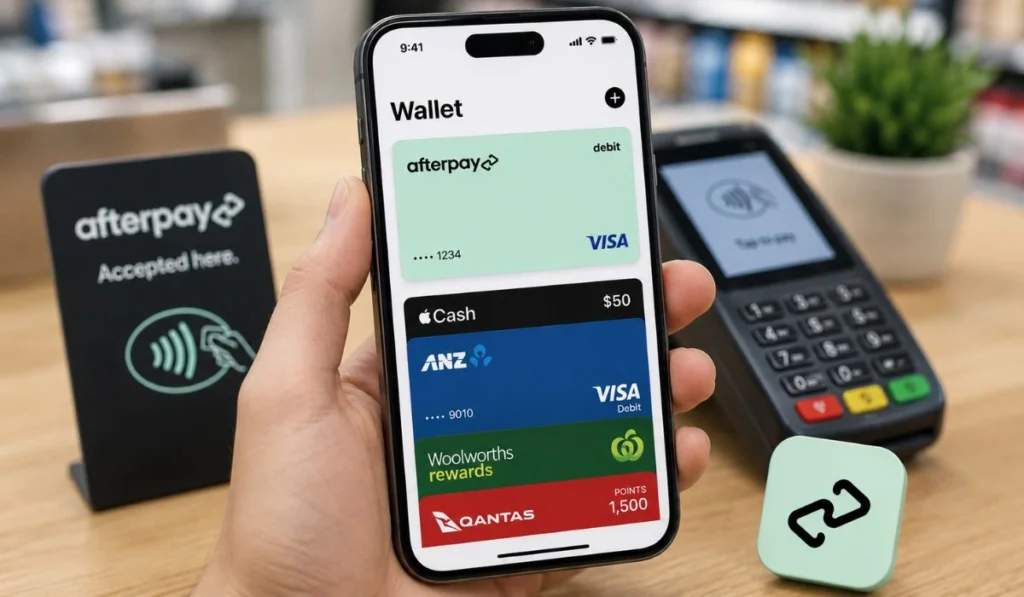
Adding the Afterpay Card to Apple Wallet is not hard once you know where to look. The wording in the app can change a little, but the flow is usually similar.
- Open the Afterpay app on your iPhone.
- Log in to your Afterpay account.
- Go to the Card tab or in-store card section.
- Select the Afterpay Card.
- Tap Add to Apple Wallet.
- Follow the Apple Wallet setup prompts.
- Verify your card if asked.
- Wait for the card to appear inside Apple Wallet.
Afterpay’s in-store setup works through a digital Afterpay card. The usual process is to open the Afterpay app, go to the Card area, create or access the digital card, and add it to Apple Pay or Google Pay for in-store use.
If Apple Wallet system asks for verification, complete it before going to the store. Don’t leave this until you’re standing at the payment terminal. That’s when everything feels ten times more stressful for no reason.
How to Use Afterpay With Apple Wallet In-Store
Once the Afterpay Card is added to Apple Wallet, you can use it at supported stores that accept Afterpay and contactless payments. It works like a tap-and-pay card.
Here’s the normal in-store process:
- Open Apple Wallet on your iPhone.
- Choose the Afterpay Card.
- Confirm with Face ID, Touch ID, or your passcode.
- Hold your iPhone near the payment terminal.
- Wait for the payment confirmation.
- Check the payment plan in the Afterpay app after purchase.
Apple Pay works by adding a card to Wallet and authenticating with Face ID, Touch ID, or a passcode before payment. Apple also says some card issuers may require extra verification before a card is approved for Apple Pay.
The main thing to remember is simple: adding Afterpay to Apple Wallet does not mean every store will accept it. The store still needs to accept Afterpay in-store, and your Afterpay account still needs to approve the purchase.
Why Afterpay Won’t Add to Apple Wallet
Sometimes the Afterpay Card does not add to Apple Wallet. It can feel confusing, but usually there is a basic reason behind it.
| Problem | What It Usually Means |
|---|---|
| Afterpay Card is missing | Your account or region may not support in-store card use |
| Add to Apple Wallet button is not showing | The app may need updating or your account may not be eligible |
| Card added before, but disappeared | Apple Pay settings, passcode, or device setup may need checking |
| Verification fails | Your linked card or Afterpay account may need attention |
| Card added before but disappeared | iCloud, passcode, or Wallet settings may have changed |
Start with the simple fixes first. Update the Afterpay app. Restart your iPhone. Check that Apple Wallet is working with another card. Make sure Face ID, Touch ID, or passcode is turned on.
Apple also notes that if you sign out of iCloud or remove your passcode, payment cards can be removed from the device. So if your cards suddenly disappeared, check your Apple settings too.
Why Afterpay Card May Decline in Apple Wallet
Adding the card is only the setup part. The payment can still decline at the store.
This can happen if your Afterpay spending limit is too low, your account has unpaid payments, the store does not support Afterpay, or the order total exceeds the limit set by Afterpay.
It can also happen if your linked payment card inside Afterpay has expired or does not have enough funds for the first payment. Remember, Afterpay usually still needs to collect the first installment when the purchase is made.
Common reasons include:
- Your Afterpay limit is not enough
- The store does not accept Afterpay in-store
- Your linked debit or credit card has an issue
- You have missed or unpaid Afterpay payments
- The purchase type is not eligible
- Apple Wallet or contactless payment failed at the terminal
A small tip: open the Afterpay app before you shop and check your available spending limit. It takes a few seconds, and it can save you from a declined payment at the counter.
How to Remove Afterpay From Apple Wallet
If you no longer want the Afterpay Card in Apple Wallet, you can remove it from your iPhone. This does not delete your Afterpay account. It only removes the card from Wallet.
Here’s the simple way:
- Open the Apple Wallet app.
- Tap the Afterpay Card.
- Tap the card details or the more button.
- Choose Remove Card.
- Confirm the removal.
If you want to use Afterpay in-store again later, you may need to add the card back from the Afterpay app. So don’t remove it unless you’re sure you don’t need it right now.
Tips Before Using Afterpay in Apple Wallet
Before using Afterpay with Apple Wallet, check a few things first. It keeps the payment smoother and avoids small problems later.
- Check your Afterpay limit before shopping. Don’t guess. Open the app and see what amount is available before you reach checkout.
- Make sure the store accepts Afterpay in-store. Apple Wallet can hold the card, but the retailer still needs to support Afterpay payments.
- Use a debit card if possible. Paying Afterpay with a credit card can turn one payment plan into another debt problem.
- Set reminders for repayments. Afterpay payments can be easy to forget because they are split into smaller amounts.
- Don’t use it for random impulse buys. If you only want something because the payment looks smaller, pause for a minute.
- Keep your Afterpay app updated. Card setup and Wallet features may not work properly on an old app version.
- Check your linked card. If your linked debit or credit card is expired, locked, or low on funds, the purchase may fail.
Afterpay in Apple Wallet is useful, but it is not free money. It just spreads the cost. That’s fine when the purchase is planned. It’s not so great when the cart only feels affordable because the payment is split.
Final Thoughts
Adding Afterpay to Apple Wallet is simple if the Afterpay Card is available in your app. Open Afterpay, go to the Card section, tap Add to Apple Wallet, and finish the setup prompts.
Once it is added, you can use your iPhone to tap and pay at supported stores. Just check your spending limit, linked card, and repayment dates before using it. Afterpay can be helpful, but only when the purchase already fits your budget.
Have you tried adding Afterpay to Apple Wallet? Comment on what problem you faced, such as a card missing, Wallet errors, or a payment declined.